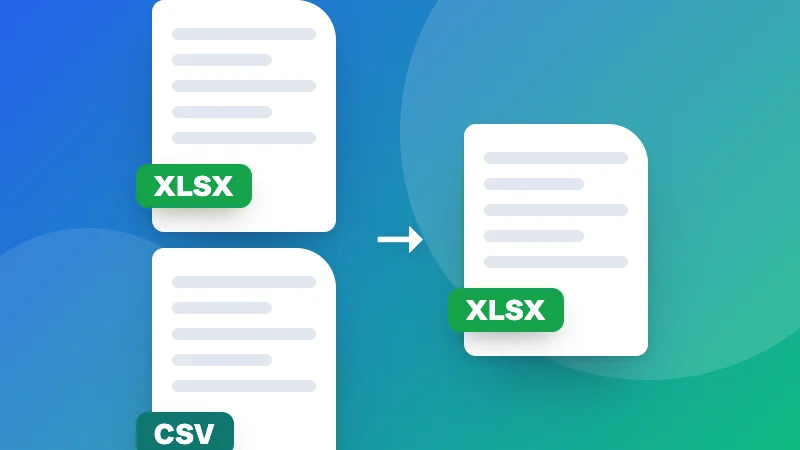
How to convert CSV to Excel
- Choose one or more CSV files.
- Check the preview; change the separator if the columns look wrong.
- Click Download Excel file to get an .xlsx workbook.
Want to edit the data first? Open it in the spreadsheet viewer & editor.
Ubah file CSV menjadi spreadsheet Excel dengan kolom tetap, angka dikenali, dan beberapa file sebagai sheet terpisah.
Want to edit the data first? Open it in the spreadsheet viewer & editor.
An Excel file keeps numbers as numbers, column widths, and several sheets in one file, and it opens with the right columns every time, whatever the computer's regional settings.
Tick “Keep everything as text”. Otherwise numbers such as 0771234567 become 771234567, because Excel stores them as numbers.
Yes. Choose several CSV files at once and each one becomes a separate sheet in the same Excel workbook, named after the file.
Leave it on “Detect automatically”. It checks for commas, semicolons, tabs and pipes. If the preview shows everything in one column, choose the separator yourself.