How to adjust brightness and contrast
- Choose your photos.
- Move the sliders, or click Auto enhance.
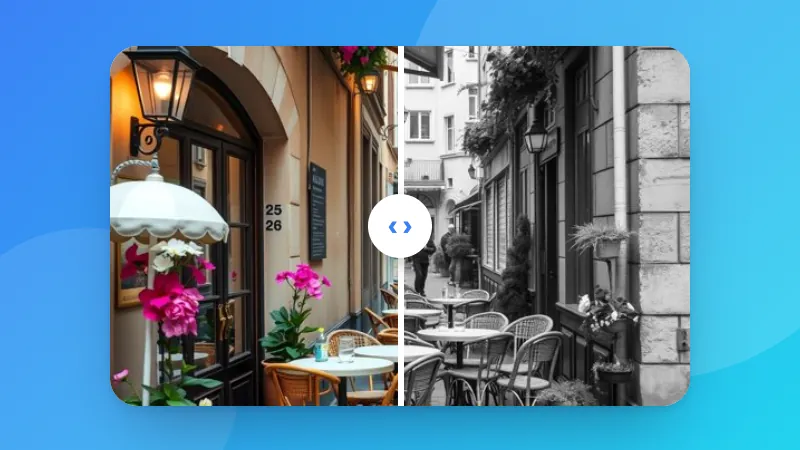
- Hold the compare button to see the before, then download.
Want a black-and-white look instead? Use the black & white converter.
Cerahkan foto gelap dan perbaiki warna kusam dengan slider kecerahan, kontras, saturasi, dan kehangatan.
Want a black-and-white look instead? Use the black & white converter.
Raise the brightness a little, then add some contrast so it doesn't look washed out. Or click “Auto enhance” to set both from the photo's tones.
Warmth shifts the colors towards orange (positive) or blue (negative). It's useful for photos taken under fluorescent light or in shade that look too cold.
Yes. Choose several photos, adjust one, and click “Download all (ZIP)” to apply the same settings to all of them.
The photo is saved at high quality. Each time a JPG is saved it's compressed again, so for repeated editing PNG keeps the most detail.