How to blur faces or text in a photo
- Choose an image.
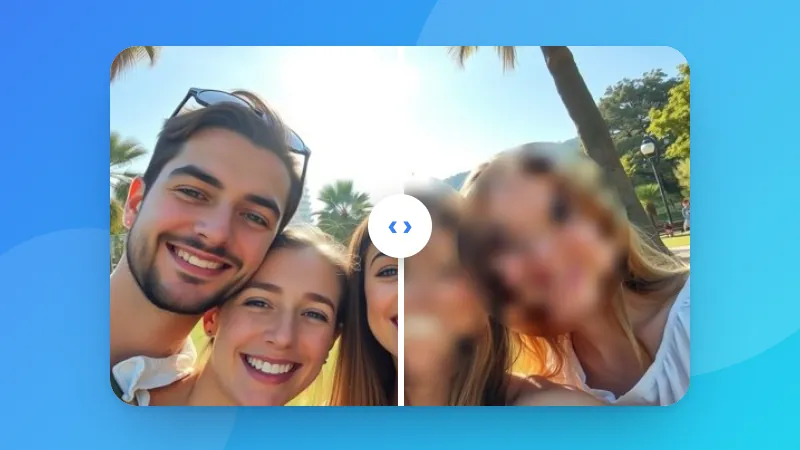
- Pick pixelate, blur or black box, and set the strength.
- Drag over each area to hide, then click Download.
Before sharing a photo, also remove its hidden location data with Remove EXIF Data.
Oculta caras, matrículas o datos privados desenfocando o pixelando las zonas que selecciones, o toda la imagen.
Drag on the image to select each area to hide.
No areas selected: the whole image is affected.
Before sharing a photo, also remove its hidden location data with Remove EXIF Data.
Drag a box over each area you want to hide, such as a face, name or license plate. You can add as many boxes as you like. With no boxes, the whole image is blurred.
For sensitive information such as passwords or ID numbers, use the black box. Strong pixelation is fine for faces, but small text can sometimes be guessed from light blur or pixelation.
Yes. Use “Undo last area” to remove the most recent box, or “Clear areas” to start again.
No. The areas are blurred in your browser, so the original never leaves your device.