टेम्पलेट से स्लाइड डेक बनाएँ: स्लाइड, टेक्स्ट, फ़ोटो, आकार और आइकन जोड़ें, फिर प्रेज़ेंट या शेयर करने के लिए PDF डाउनलोड करें।
Describe what you need, and get several designs with your words already in them.
The AI runs on your device, so nothing you type is sent anywhere. The first time it downloads about 500 MB (best on Wi-Fi, and on a computer); after that it starts in seconds.
Picture with AI Select a photo frame first to fill it
A template opens as a new design, so nothing you've made is lost.
Font pairs
Shapes
Lines and arrows
Tables, QR codes and barcodes
Photo frames Drop a photo in to fill the shape
Charts Type your numbers in
Stickers
Celebrate
Love
Shapes and signs
Nature
Food and drink
Places and travel
Activities
Business
People
Animals
Seasons
Icons
Or drop photos onto your design. Your photos stay on your device.
Draw straight onto the page. Each stroke is its own object you can move, recolour or delete later.
Colour
Everything on this page, front to back. Drag to change the order; double-click a name to rename it.
This page is empty. Add text, photos or elements and they’ll appear here.
Click anything to change it. Double-click text to type.
Drag the box or its corners to crop. Enter to finish.
Group
All pagesDrag a page to move it. Click one to open it.
Opening the editor…
Animate
Selected element
Everything comes in one after another, from the top. Download an MP4 video or an animated GIF from Download.
Download
Also at other sizes
Get copies laid out for each size, in one ZIP.
Share a link
Sign in to share a link to this design. People you send it to can see it without an account.
Anyone with the link can see this design and download it. The link always shows your latest version.
Put your menu online
Get a page for this menu and a QR code for your tables. When you change the menu here, the page changes too. Sign in to set it up; guests don't need an account.
Guests scan the QR code and see this menu on their phone. Whenever you save a change here, the page shows it, so the QR code never needs reprinting.
RSVP: let guests reply online
Get a reply page for this invitation: guests say if they're coming, with how many people, and you see every answer here. Sign in to set it up; guests don't need an account.
Gradients
Style
Fine-tune
Chart
Table
QR code or barcode
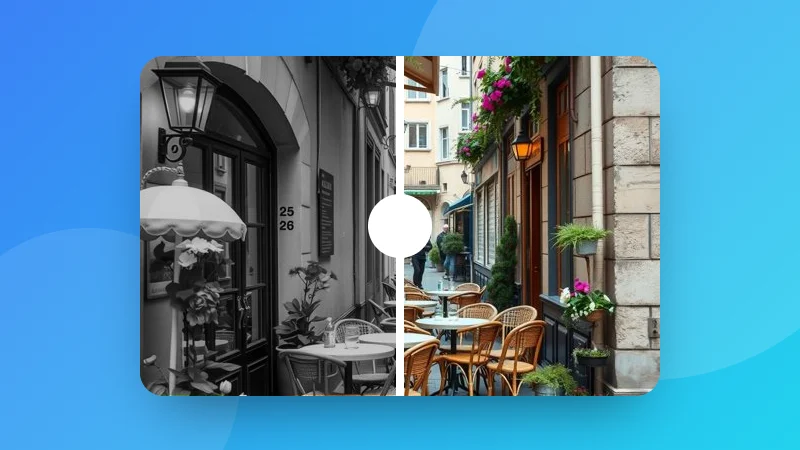
Adjust photo
Filters
One colour for logos and icons
Photo shape
Border & shadow
Shaped photos can’t have a border. Set the shape to Original or Rounded to add one.
Layer
Line up on the page
Size and position
Mockup: see your design in place
Version history
Earlier versions of this design, saved on this device every few minutes while you work. Restoring keeps a copy of how it is now.
Find and replace
Notes for this page
Saved with the design. Notes aren’t part of downloads.
View
Hold Alt while moving to turn snapping off for a moment.
New design
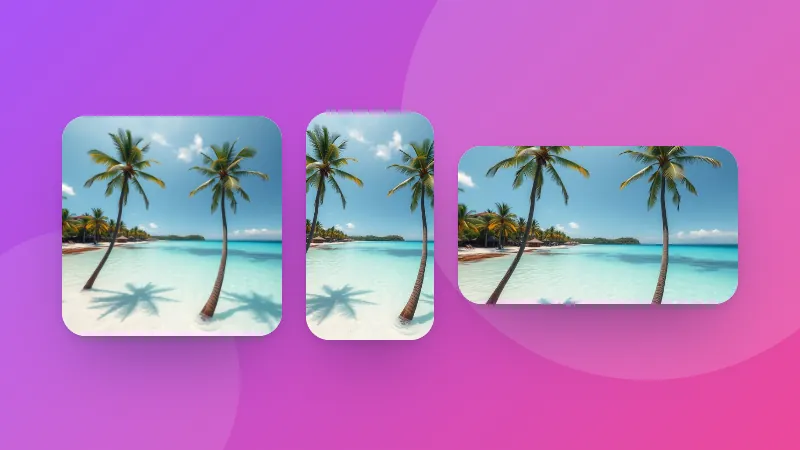
Pick a size. You get a copy of this design, laid out for that size; the original stays as it is.
How to make a presentation
Start from a template, or a blank 16:9 slide.
Add slides with the buttons next to the page thumbnails at the bottom, and duplicate a slide to keep the same layout.
Add text, photos, shapes and icons. Your work saves as you go.
Download a PDF with all your slides, ready to present full-screen or share.
Slides that are easy to follow
One idea per slide. If a slide needs a long title, it's probably two slides.
Big text. If it's smaller than 28 pixels on a 1920 × 1080 slide, the back row can't read it.
Show, don't list. A big number, a photo or an icon beats five bullet points.
Frequently asked questions
How do I present the slides?
Download the PDF and open it in any PDF viewer, then use full-screen or presentation mode. Every laptop, tablet and phone can open it.
Can I make 4:3 slides?
Yes. In the Designs panel, choose New design, then Presentation 4:3.
Is it really free, with no watermark?
Yes. Every template, font, icon and download is free, with no watermark and no sign-up. Make as many designs as you like.
Where are my designs saved?
In this browser, automatically, as you work. Without an account, your photos never leave this device. Sign in to keep your designs, photos included, on all your devices: photos are stored privately, and only your account can open them.