ZYBERMART ස්ථාපනය කරන්න

සෑම මෙවලමක්ම ඔබේ home screen එකෙන් හෝ dock එකෙන්, වෙනම කවුළුවක විවෘත කරන්න. ඔබ භාවිත කළ මෙවලම් offline ද ක්‍රියා කරයි.

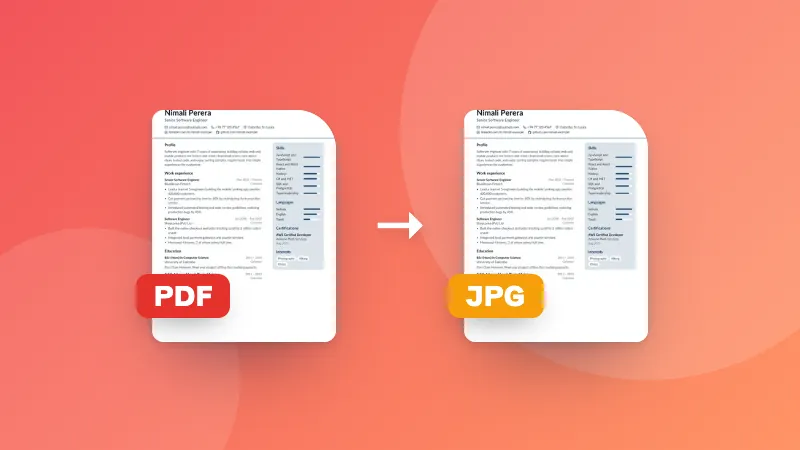
PDF කළු-සුදු කරන්න

මුද්‍රණයේදී තීන්ත ඉතිරි කිරීමට හෝ ඉදිරිපත් කිරීමේ නීතිවලට ගැළපීමට වර්ණ PDF එකක් grayscale බවට හරවන්න.

Pages are turned into grayscale images, so text in the new PDF can't be selected.

How to convert a PDF to black and white

  1. Choose the quality.
  2. Choose your PDF. Each page is converted to grayscale.
  3. The new PDF downloads automatically.

The file is too big afterwards? Use Compress PDF. For photos, use the black & white photo converter.

Frequently asked questions

Why convert a PDF to grayscale?

To save color ink when printing, to meet submission rules that ask for black-and-white documents, or to check how a document looks when printed on a black-and-white printer.

Can I still select the text afterwards?

No. Each page is redrawn as a grayscale image, so text can no longer be selected or searched. Keep the original if you need that.

Which quality should I choose?

150 DPI is clear for printing text documents and keeps the file small. Choose 200 DPI for documents with small print or detailed images.

Is my PDF uploaded?

No. The conversion happens in your browser.

Can I convert several PDFs at once?

Yes. Choose or drop several PDFs together: each one is converted and they download in one ZIP file.

ZYBERMART වෙත පුරනය වන්න

ඔබේ CV, ඉන්වොයිසි, flashcards, සටහන් සහ සුරැකි මෙවලම් ඔබේ සියලු උපාංගවල තබා ගන්න. එය නොමිලේ, ගිණුමක් නැතිවත් මෙවලම් එලෙසම ක්‍රියා කරයි.

හෝ

මුරපදයක් අවශ්‍ය නැත. පුරනය වීමෙන් ඔබ නියමවලට එකඟ වේ; අපි ඔබේ දත්ත හසුරුවන ආකාරය රහස්‍යතා ප්‍රතිපත්තියෙන් බලන්න.

ඔබේ ගිණුම

ඉවත් වූ පසුත් ඔබේ වැඩවල පිටපතක් මෙම බ්‍රවුසරයේ ඉතිරි වේ. පොදු පරිගණකයක නම්, පසුව ඔබේ බ්‍රවුසර දත්ත මකන්න.

ඔබට සෑදීමට අවශ්‍ය කුමක්ද?

නිර්මාණ

සමාජ මාධ්‍ය

ලේඛන

අධ්‍යයනය

සංස්කරණය

මෙවලම් 282 සියල්ල බලන්න