Installera ZYBERMART

Öppna alla verktyg från hemskärmen eller Dock, i ett eget fönster. Verktyg du har använt fungerar även offline.

PDF till gråskala

Gör om en färg-PDF till gråskala för att spara bläck vid utskrift eller uppfylla krav vid inlämning.

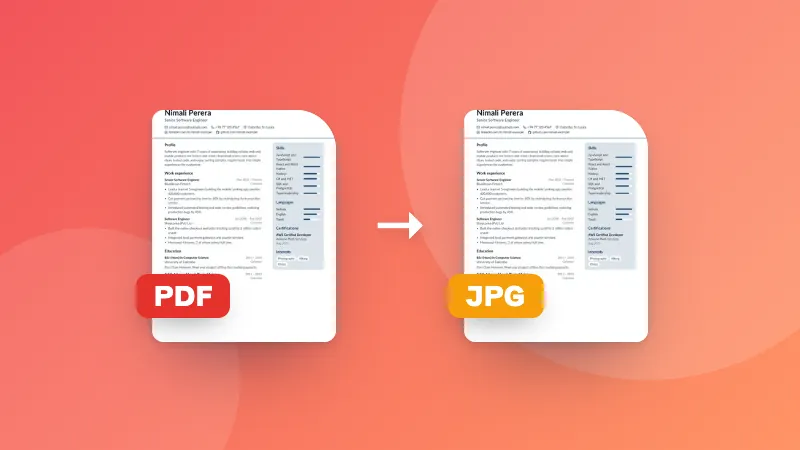
Pages are turned into grayscale images, so text in the new PDF can't be selected.

How to convert a PDF to black and white

  1. Choose the quality.
  2. Choose your PDF. Each page is converted to grayscale.
  3. The new PDF downloads automatically.

The file is too big afterwards? Use Compress PDF. For photos, use the black & white photo converter.

Frequently asked questions

Why convert a PDF to grayscale?

To save color ink when printing, to meet submission rules that ask for black-and-white documents, or to check how a document looks when printed on a black-and-white printer.

Can I still select the text afterwards?

No. Each page is redrawn as a grayscale image, so text can no longer be selected or searched. Keep the original if you need that.

Which quality should I choose?

150 DPI is clear for printing text documents and keeps the file small. Choose 200 DPI for documents with small print or detailed images.

Is my PDF uploaded?

No. The conversion happens in your browser.

Can I convert several PDFs at once?

Yes. Choose or drop several PDFs together: each one is converted and they download in one ZIP file.

Logga in på ZYBERMART

Ha dina CV:n, fakturor, flashcards, anteckningar och sparade verktyg på alla dina enheter. Det är gratis, och verktygen fungerar likadant utan konto.

eller

Inget lösenord behövs. Genom att logga in godkänner du villkoren. Läs hur vi hanterar dina data i integritetspolicyn.

Ditt konto

När du loggar ut finns en kopia av ditt arbete kvar i den här webbläsaren. På en delad dator bör du rensa webbläsardata efteråt.

Vad vill du skapa?

Designer

Sociala medier

Dokument

Studier

Redigera

Visa alla 282 verktyg