Instal ZYBERMART

Buka semua alat dari layar utama atau dock, di jendelanya sendiri. Alat yang pernah Anda gunakan juga bisa dipakai offline.

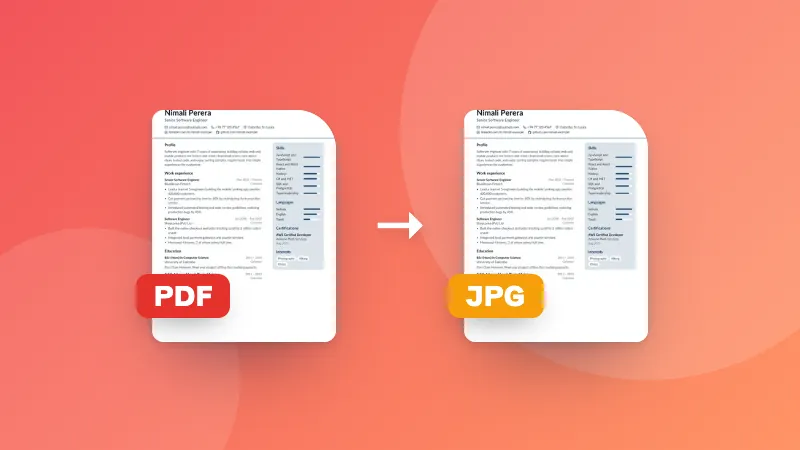
PDF ke Grayscale

Ubah PDF berwarna menjadi grayscale untuk menghemat tinta saat mencetak atau memenuhi aturan pengumpulan.

Pages are turned into grayscale images, so text in the new PDF can't be selected.

How to convert a PDF to black and white

  1. Choose the quality.
  2. Choose your PDF. Each page is converted to grayscale.
  3. The new PDF downloads automatically.

The file is too big afterwards? Use Compress PDF. For photos, use the black & white photo converter.

Frequently asked questions

Why convert a PDF to grayscale?

To save color ink when printing, to meet submission rules that ask for black-and-white documents, or to check how a document looks when printed on a black-and-white printer.

Can I still select the text afterwards?

No. Each page is redrawn as a grayscale image, so text can no longer be selected or searched. Keep the original if you need that.

Which quality should I choose?

150 DPI is clear for printing text documents and keeps the file small. Choose 200 DPI for documents with small print or detailed images.

Is my PDF uploaded?

No. The conversion happens in your browser.

Can I convert several PDFs at once?

Yes. Choose or drop several PDFs together: each one is converted and they download in one ZIP file.

Masuk ke ZYBERMART

Simpan CV, invoice, flashcard, catatan, dan alat tersimpan Anda di semua perangkat. Gratis, dan semua alat tetap berfungsi sama tanpa akun.

atau

Tanpa kata sandi. Dengan masuk, Anda menyetujui ketentuan kami; lihat cara kami mengelola data Anda di kebijakan privasi.

Akun Anda

Saat keluar, salinan pekerjaan Anda tetap tersimpan di browser ini. Di komputer bersama, hapus data browser setelahnya.

Apa yang ingin Anda buat?

Desain

Media sosial

Dokumen

Belajar

Edit

Lihat semua 282 alat