Instal ZYBERMART

Buka semua alat dari layar utama atau dock, di jendelanya sendiri. Alat yang pernah Anda gunakan juga bisa dipakai offline.

Konverter PDF ke Word

Ubah PDF menjadi dokumen Word (.docx) yang bisa diedit, lengkap dengan paragraf dan judulnya.

How to convert PDF to Word

  1. Choose your PDF.
  2. Check the preview of the paragraphs and headings.
  3. Click Download Word file and open it in Word, Google Docs or LibreOffice.

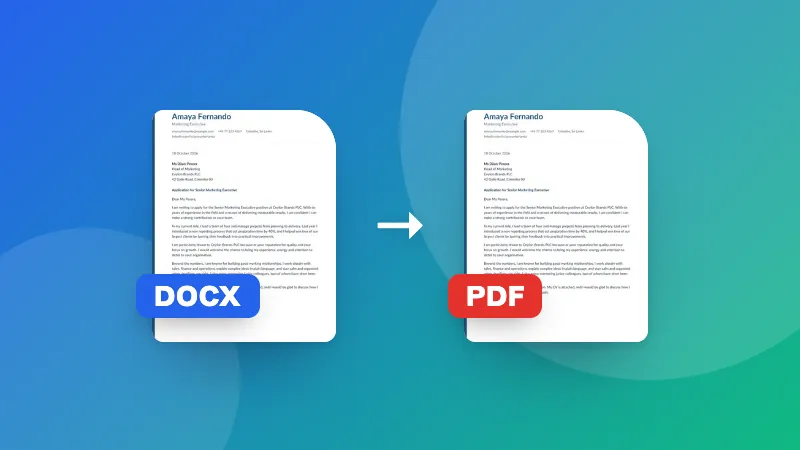
Only need the plain text? Use PDF to Text. Converting the other way? Use Word to PDF.

Frequently asked questions

What is kept when converting PDF to Word?

The text, paragraphs, headings (from larger font sizes) and bold text, so you can edit the document in Word, Google Docs or LibreOffice. Images, tables, columns and exact positions aren't recreated; for those, retype or copy them from the PDF.

Why is my Word document empty?

The PDF is probably a scan, so its pages are pictures without text. Converting those needs OCR (text recognition), which you can do with the Scanned PDF to Text tool.

Will the layout look exactly like the PDF?

No. PDFs store text at fixed positions, while Word flows text into paragraphs. The converter rebuilds paragraphs so the text is easy to edit, which means the line breaks and page breaks may differ.

Is my PDF uploaded?

No. The PDF is read and the Word file is created in your browser.
Masuk ke ZYBERMART

Simpan CV, invoice, flashcard, catatan, dan alat tersimpan Anda di semua perangkat. Gratis, dan semua alat tetap berfungsi sama tanpa akun.

atau

Tanpa kata sandi. Dengan masuk, Anda menyetujui ketentuan kami; lihat cara kami mengelola data Anda di kebijakan privasi.

Akun Anda

Saat keluar, salinan pekerjaan Anda tetap tersimpan di browser ini. Di komputer bersama, hapus data browser setelahnya.

Apa yang ingin Anda buat?

Desain

Media sosial

Dokumen

Belajar

Edit

Lihat semua 282 alat