How to extract images from a PDF
- Choose your PDF.
- Every embedded picture is found and shown with its size.
- Download them one by one or all together as a ZIP.
Images inside Word documents can be saved with Extract Images from Word.
Spara originalbilderna i en PDF som separata bildfiler, utan skärmdumpar.
Images inside Word documents can be saved with Extract Images from Word.
The images are saved at the resolution they're stored at inside the PDF, not as screenshots of the page. Some PDFs store images smaller than they appear, so the result can't be sharper than that.
Charts, logos and drawings are often made of vector shapes rather than pictures, so there's no image to extract. Save the whole page with PDF to PNG instead. Tiny images such as lines and icons are skipped unless you untick that option.
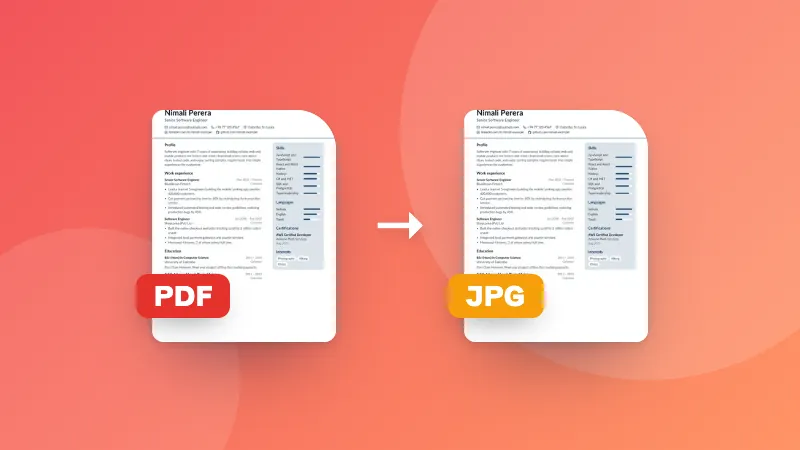
PNG keeps the exact pixels, including transparency. Choose JPG for smaller files when the images are photos.
No. The images are extracted in your browser.