How to remove blank pages from a PDF
- Choose your PDF. Every page is checked and the blank ones are marked.
- Move the slider if scanned pages with specks were missed, and click any page to keep or remove it.
- Save the PDF without the blank pages.
Blank pages often come from double-sided scanning of single-sided letters. Putting double-sided scans in order? Use combine double-sided scans. Removing pages by number instead? Try delete PDF pages.
Frequently asked questions
How does it find blank pages?
Each page is looked at for ink: pages that are white or almost white are marked. Scanned pages often have specks or a faint shadow; move the slider up to also catch those, or down to keep pages with only a page number.
Can I keep a page it marked, or remove one it didn't?
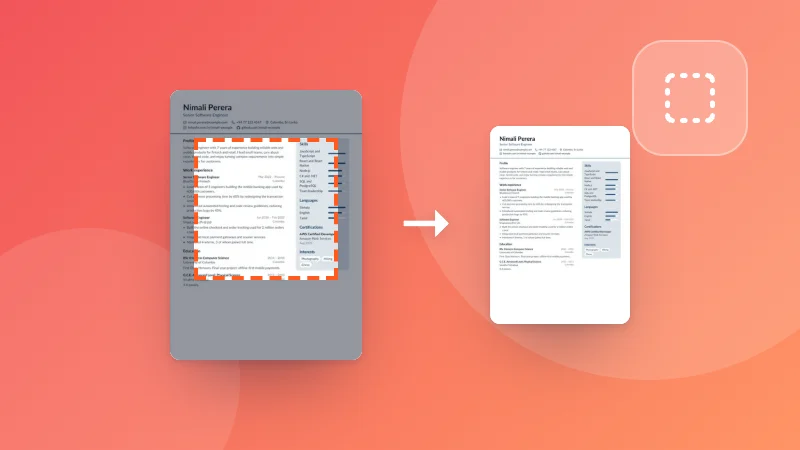
Yes. Click any page to change it before you save.
Does it change the other pages?
No. The pages you keep are copied as they are, with their text, links and quality.
Is my PDF uploaded?
No. It's checked and saved in your browser.