How to fill in a PDF form
- Choose the PDF form. Its fields appear on the pages, highlighted in blue.
- Click a field and type, tick the boxes and pick the options.
- Choose Download filled PDF. Tick “Lock the answers” first if nobody should change them.
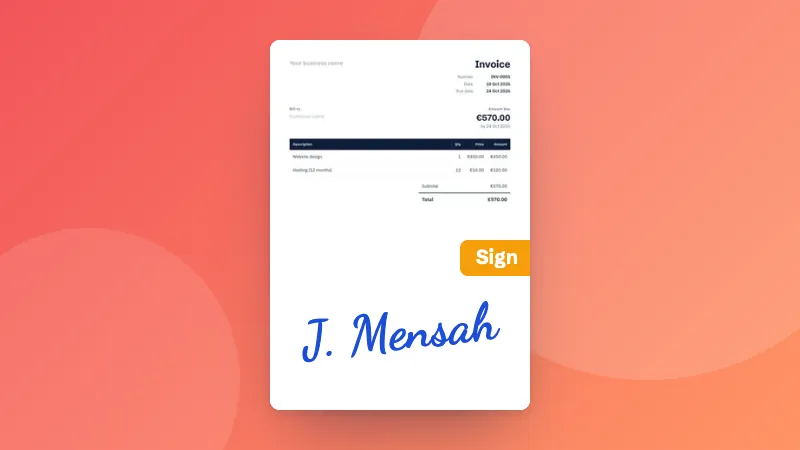
No fields to fill in? Type straight onto the page with the PDF editor. Need to sign it? Use Sign PDF.
Frequently asked questions
Which PDFs can I fill in here?
PDFs with fillable fields: text boxes, tick boxes, options and lists that you can click into in a PDF reader. Most government, bank and job application forms have them. If a PDF has no fields (a scan, or a printed-then-saved form), use the PDF editor to type anywhere on it instead.
What does “Lock the answers” do?
It flattens the form: your answers become part of the page, so they can't be changed and look the same in every app. Leave it off if someone else still needs to fill in or change the form.
Are my answers uploaded?
No. The PDF is opened and filled in on your device, in your browser, and never sent anywhere.
Can I sign the form too?
Yes. Download the filled form, then add your signature with Sign PDF.
Why do some letters not appear?
Some forms only include fonts for English letters. If your answers use other alphabets, the tool swaps in a font that covers more of them; letters it still can't show are reported before you download.